

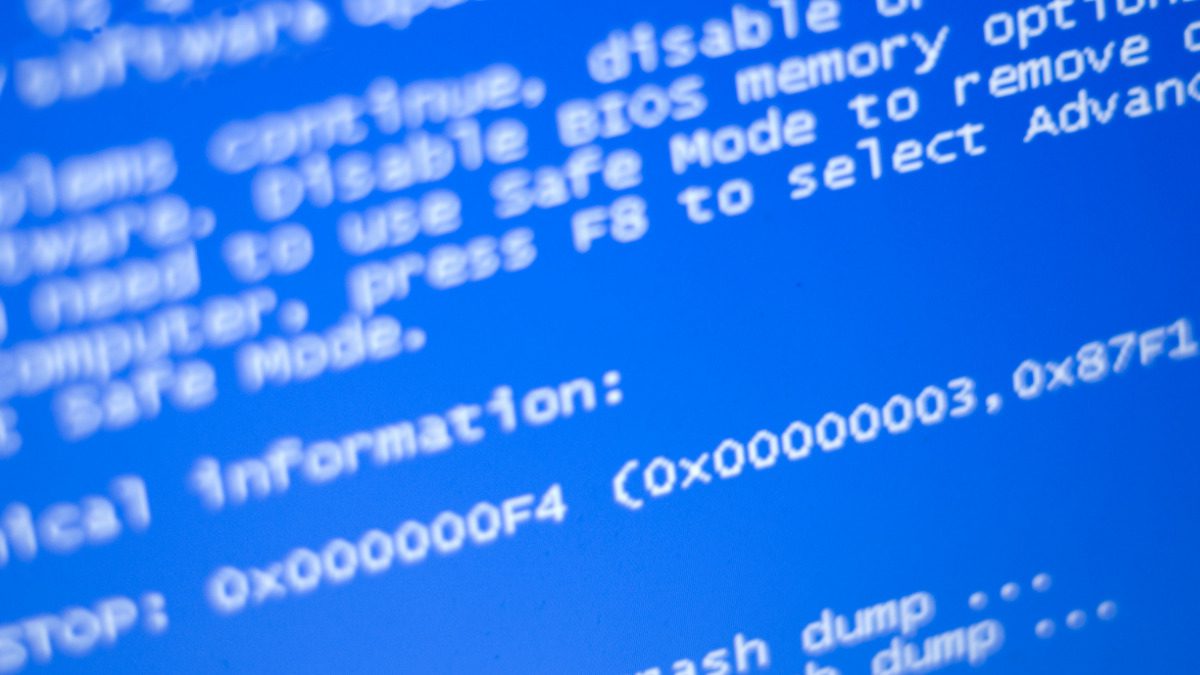
Do you know the free BootSafe utility that allows you to restart Windows in the safe mode of your choice? Safe Mode is a way to start Windows with minimal functionality and no additional programs, which can be very useful for troubleshooting, repairing, or removing malware.
In this article, we'll explain what BootSafe is, its features, how to use it, and what advantages it has over other methods for accessing Safe Mode.
BootSafe Features
The free BootSafe utility has the following features:s
- It is compatible with Windows XP, Vista, 7, 8, 10 and 11.
- It allows you to choose between four safe mode options: normal, with networking, with command prompt, or with Active Directory support.
- It gives you the option to restart Windows immediately or just set it to safe mode to restart later.
- It asks you if you want to return to normal mode or continue in safe mode every time you reboot.
- Automatically repairs registry corruption that prevents you from starting Safe Mode (such as due to a malware infection).
- Creates a backup of the BCD (Boot Configuration Data) file before modifying it and allows you to restore it manually if necessary.
- Allows you to create a temporary administrator user without a password if you sign in with a Microsoft account in Windows 10, as these accounts may not work in Safe Mode.

How to use BootSafe
It's very easy to use, very simple. Just follow these steps:
- Download BootSafe from its official website and run it as administrator.
- Choose the type of safe mode you want to use: normal, with networking, with command prompt, or with Active Directory support.
- Click the “Restart Windows” button to apply the settings and restart your system immediately. Please note that this will close any open programs and you will lose any unsaved data.
- If you prefer to restart later, click the “Configure only (no restart)” button and then restart manually whenever you want.
- When you boot into Safe Mode, you'll see a BootSafe window asking if you want to return to normal mode or continue in Safe Mode. Choose your preferred option and click "OK."
- If you signed in with a Microsoft account in Windows 10, BootSafe may prompt you to create a temporary administrator user without a password to access Safe Mode. It's recommended that you accept this option to avoid getting stuck in Safe Mode. This user will be automatically removed when you return to normal mode.
Advantages of the free utility
Using this tool has several advantages over other methods to access safe mode, and they are as follows:
- It is faster and more convenient than pressing the F8 or Shift+F8 key during boot, which may not work on some systems.
- It is easier and safer than manually editing the BCD file with the bcdedit.exe command, which can cause errors if not done correctly.
- It's more convenient and versatile than using the System Configuration Tool (msconfig.exe) or the Settings app (Windows 10), as it allows you to switch between different types of Safe Mode without having to return to Normal Mode each time.
- It's more effective and reliable than using a recovery disc or bootable USB drive, as it attempts to repair registry corruption that prevents you from booting into Safe Mode.
Conclusion
The tool of BootSafe is a free and easy-to-use utility that allows you to restart Windows in the safe mode of your choice. The Safe mode is a way to start Windows with minimal functionality and without additional programs., which can be very useful for troubleshooting, repairing, or removing malware.
It has different characteristics that make it Faster, more convenient, easier, safer, more practical, versatile, effective and more reliable than other methods to access safe mode. If you want to try it, you can download it from its official website and follow the steps explained in this article.
We hope this post was helpful and that you learned something new about BootSafe and Windows Safe Mode. If you have any questions or comments, please feel free to leave us a message. See you next time!
Image: Free Image Live








 Español de Colombia
 English
 Português do Brasil