

By using this site, you agree to the Privacy Policy and Terms of use.
Accept
Geekine: Your geek universe for technology, movies, apps and moreGeekine: Your geek universe for technology, movies, apps and moreGeekine: Your geek universe for technology, movies, apps and more
  • Techno
    Techno
    Explore the latest trends in technology, gadgets, and apps that are transforming our world, from breakthroughs to innovative how-tos.
    Show More
    Top News
    Qheronet Internet Security Software: An Essential Tool 2 1
    Internet security software, an essential tool in these times
    February 13, 2026
    Cell phone 3 1
    How to Quit Cell Phone Addiction: Tips and Benefits
    January 16, 2026
    Qheronet The 5 Most Amazing Artificial Intelligence YouTube Channels 1
    The 5 Most Amazing YouTube Channels About Artificial Intelligence (Video)
    January 16, 2026
    Latest News
    I analyzed 1,000 IT job offers in Latin America: This is what companies are really asking for (2026 data)
    February 10, 2026
    Did you force Windows 11 on your PC? Why it's technical suicide and the real solution (LTSC 2032)
    January 16, 2026
    How to Legally Activate Windows and Office: The Ultimate Guide
    August 26, 2025
    Learn the guide to installing Windows 11 without TPM 2.0 (and its risks)
    January 16, 2026
  • Apps
    AppsShow More
    Modern desktop with monitors displaying folders organized in bright tabs, representing the productivity offered by QTTabBar in Windows.
    Goodbye to Chaos in Windows: The Definitive Guide to QTTabBar (Tabs and Extreme Productivity)
    8 Min Read
    Windows SmartScreen warning blocking Pokedex 2.1 installation
    Pokédex for PC: Download the Legendary Version (2003) that works on Windows 11 [Without Emulators]
    8 Min Read
    Accusonus ERA Bundle: Review and Best Alternatives
    Accusonus ERA Bundle: Review and Best Alternatives
    10 Min Read
    Pluto TV Is It Worth It? We tell you in this updated analysis.
    Pluto TV: Is it worth it? We tell you in this updated review.
    8 Min Read
    100% Free and Open Source Tools for Updating Drivers in Windows
    100% Free and Open Source Tools for Updating Drivers in Windows
    15 Min Read
  • Cinema
    Cinema
    Immerse yourself in the world of film and television with reviews, trivia, news, and recommendations for all fans of the seventh art.
    Show More
    Top News
    Who 1
    The Last Days of Peter Bergmann, the documentary about a nonexistent man
    January 16, 2026
    Qheronet Avatar 2 The Cinematic Promise of Season 1
    Avatar 2: The cinematic promise of the season
    January 16, 2026
    Qheronet Batman The Superhero Rises at 80 Years Old 1
    Batman: 80 Years of the Iconic DC Comics Superhero (Video)
    January 16, 2026
    Latest News
    The hidden side of CinemaCon 2026: Leaked trailers, controversial mergers and the future of the seats
    18 April, 2026
    The Decline of CGI and Narrative Sloth: What the 2026 Razzie Awards Left Behind
    March 20, 2026
    The Fallen Immortal: The Absolute Legacy of Chuck Norris
    March 20, 2026
    Oscars 2026: The Year Monsters Took Over the Academy
    March 19, 2026
  • Games
    GamesShow More
    Giant collection of classic and modern console games on a table illuminated with dragon spheres.
    Do you know how many Dragon Ball video games there are to date?
    12 Min Read
    Futuristic illustration of digital brain training with puzzles and mathematical formulas.
    Brain Challenge 3 and 4: Why do these Gameloft classics outperform current AI apps? Read our analysis
    10 Min Read
    Android smartphone running Pokémon GO in a park with gamer accessories.
    Pokémon GO: Master Guide to Installation, APKs, and Troubleshooting
    9 Min Read
    Guide to play SNES Colombian Soccer 96 on PC and Android.
    Colombian Soccer 96 (SNES): Play the Clásico and discover its secret history
    9 Min Read
    Learn the tricks and secrets with this Super Mario Bros. 2 Master Guide
    Learn the tricks and secrets with this Super Mario Bros. 2 Master Guide
    11 Min Read
  • AniComics
    AniComics
    Delve into the world of comics with analysis, news, epic stories, and characters who have left their mark on geek culture.
    Show More
    Top News
    After Wacky Races, Yogi Bear's Wacky Space Race 1 Arrived
    After Wacky Races came Yogi Bear's Wacky Space Race
    February 13, 2026
    Kino No Tabi Recommendation: An Anime to Reflect On 1
    Recommendation: Kino No Tabi. An anime to reflect on.
    January 16, 2026
    Qheronet Did You Know Where the Word Saiyan 1 Originates From?
    Discover the origin of the word Saiyan
    January 16, 2026
    Latest News
    Pokenatomy: Exploring the Fabulous Inner World of Pokémon (A Biological Analysis Through the Filter of Fantasy)
    January 16, 2026
    Spooky: A Ghostly Animated Series
    February 13, 2026
    Maya Nasa: icon against violence and armed conflict
    January 16, 2026
    Captain Planet and the Planeteers: Inspiration in the Face of Climate Change
    January 16, 2026
  • EN
    EN
    ES PT
Search
Innovation
  • Anime and Comics
  • Applications
  • Science and Health
  • Film and Television
  • How They Do It
Technology
  • Curiosities
  • DIY
  • Mobile phones
  • Music
  • Recommended
Entertainment
  • Technology
  • Top 6
  • Tutorials
  • Video games
  • VIP
  • Contact us
  • Us
  • Legal
  • Conditions
© 2024 - 2026 | Geekine – All rights reserved | Powered by Qhero.net
Reading: RecordCast: Learn how to edit videos and record your screen online for free.
Sign in
Notification Show More
Font ResizerAa
Geekine: Your geek universe for technology, movies, apps and moreGeekine: Your geek universe for technology, movies, apps and more
Font ResizerAa
Search
  • EN
    EN
    ES PT
  • Categories
    • Anime and Comics
    • Applications
    • Science and Health
    • Film and Television
    • How They Do It
    • Curiosities
    • DIY
    • Mobile phones
    • Music
    • Recommended
    • Technology
    • Top 6
    • Tutorials
    • Video games
    • VIP
  • Bookmarks
    • Interests
    • Bookmarks
    • Blog
    • Play (FC96)
Have an existing account? Sign in
Follow US
  • Contact us
  • Us
  • Legal
  • Conditions
© 2024 - 2026 | Geekine – All rights reserved | Powered by Qhero.net
⏳🅰️ Avengers: Doomsday | Countdown! 🛡️⌛
- Advertisement -
Geekine: Your geek universe for technology, movies, apps and more > Blog > Applications > RecordCast: Learn how to edit videos and record your screen online for free.
Applications

RecordCast: Learn how to edit videos and record your screen online for free.

Hector Pellegatti
Last updated: January 16, 2026 3:46 am
Hector Pellegatti
Share
Qheronet Recordcast Discover How to Edit Videos and Record Your Screen Online and for Free 1
SHARE

For some time now, internet communication has been steadily increasing. As a result, countless applications have appeared on the market. Among them, one stands out..., RecordCast, a Software that allows you to record your computer screen live and edit videos of a simple and free way.

Content
  • What is RecordCast?
  • Characteristics
  • How is it used?
  • Quick steps to use RecordCast:
  • More detailed steps to get the most out of RecordCast:
    • 1. Recording settings:
    • 2. During the recording
    • 3. Edit the recorded videos
    • 4. Download the video

This is an application that in the current era has become indispensable for communicating via the internet. Whether for personal or business purposes, creating your videos to explain how a specific item works or making a video for your fans on a particular website.

RecordCast It's an application developed by PearlMountain, who have focused on research and development of graphics and multimedia software since 2006. This has led them to aim to create applications that are accessible to everyone.

If you want to discover the benefits of this excellent application, keep reading, and to stay up to date with their news you can follow them on Facebook and Twitter.

What is RecordCast?

geekine.com - Discover how to edit videos and record your screen online with RecordCast for free.
This is the best app for recording and editing videos of your computer screen. | Image: RecordCast

It's a A set of tools that greatly facilitate capturing and recording from your device's screen, and at the same time, you can do it from your webcam..

Furthermore, it allows you to edit the recording without leaving the site. For this reason You don't need any other program to perform the editing.

If you need an easy-to-use application to record your videos or to share information for a project, this is for you. RecordCast It's ideal.

Characteristics

geekine.com - Discover how to edit videos and record your screen online with RecordCast for free.
It's an excellent tool for tutorials. | Image: RecordCast

Once you learn about its features, you'll realize it's a superior application to the others. To begin, The software is compatible with Mac and Windows devices. Therefore, there is no need to download any other application or add-on.

It also allows you to save storage space because You should not download the application to your device.

Another advantage of the application is that it allows you to record the entire screen, only application windows, or the browser window.. Regarding audio, it can be recorded during the work session or added later for a better, high-quality result, offering a range of options.

To complement the videos, the application has an editor to enhance the recordings, adding titles, captions, and much more to give that original touch to the work that is done.

Finally, RecordCast is free software with which you can create your videos in MP4 format with a high resolution of 1080p without watermarks or anything like that.

How is it used?

geekine.com - Discover how to edit videos and record your screen online with RecordCast for free.
It can also be used for presentations. | Image: RecordCast

The application can be used without registration, but if you wish to save, edit, and download videos, you must subsequently register on the website. RecordCast. Once registered, upon logging in you will arrive at the editor / my projects section where you will see the different videos you create.

In the following lines, you'll find quick steps for creating a video, followed by a more detailed explanation. The first part is geared towards experienced users, and the second part is for beginners.

Quick steps to use RecordCast:

geekine.com - Discover how to edit videos and record your screen online with RecordCast for free.
Recording your computer screen with this application is very easy. | Image: RecordCast

To begin, you must press the button Create recording (Create Recording) on the main page.

Then, the adjustment must be made Configuration sound in (Recording Settings) selecting the audio source of the video you want to record.

Then, the recording begins. After completing the task, the Download and Edit button is pressed.Download and Edit) to stop the video. You can also re-record it or download and edit it.

It should be noted that You can have up to 12 projects on the page per user. But you can delete them as you create others. As you can see, it's very easy to use this fantastic app to create your videos.

More detailed steps to get the most out of RecordCast:

With the following 4 steps you will learn all the parameters and how to use the application to get the most out of it in your videos.

1. Recording settings:

geekine.com - Discover how to edit videos and record your screen online with RecordCast for free.
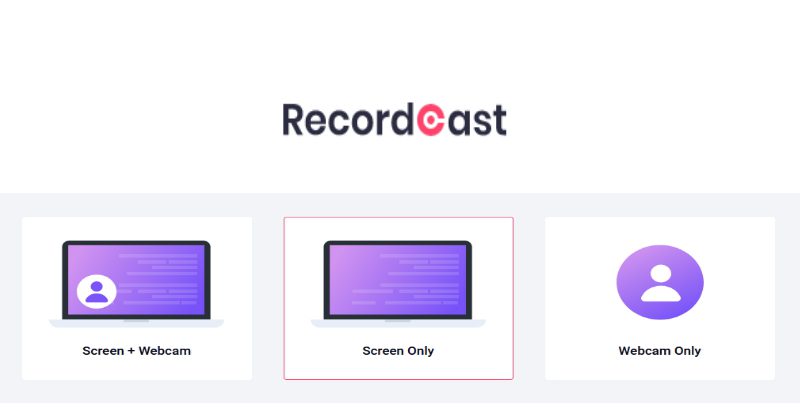
Three ways to record: webcam, screen, or both. | Image: RecordCast

We begin with the setup. After pressing the Create recording button (Create by Record), a window appears to select 1 of the 3 options to record the video.

  • The first option is screen and camera recording.
  • The second option is screen recording only.
  • And the last option is to use only the webcam.

After selecting one of the three, press the button Next step (Next Step) to choose between the audio options. You can choose microphone only, audio system only, or no audio.

Then, the button must be pressed Start recording (Start Recording) To begin the audiovisual production, although first you must select between three options to make the video.

  • The first one allows you to record the entire computer screen.
  • The second option allows you to select a specific application so that only the marked section is displayed in the recording.
  • And the third option lets us access a specific tab in the browser.

Finally, all that remains is to press the button. Share (Share) to begin recording the project.

2. During the recording

geekine.com - Discover how to edit videos and record your screen online with RecordCast for free.
Recording is very easy with the app. | Image: RecordCast

When recording, a small control bar is displayed that can be hidden by clicking on it. The bar will appear in a new browser tab.

To finish recording, press the button. End recording (End Recording) in the control bar. It should be noted that the free version allows recordings of up to 5 minutes.

3. Edit the recorded videos

geekine.com - Discover how to edit videos and record your screen online with RecordCast for free.
It allows editing with multiple options. | Image: RecordCast

Once the recording is finished, you have two options for editing the videos. One allows you to download your video to edit it with another program, and the other provides a download to send the video to the editing interface of RecordCast in order to edit it freely.

When we take this second option, a The toolbar on the left has several functions, such as adding photos, videos, and music, creating overlays, applying effects, or changing the video's image, to name just a few.. In this way, the recording can be modified as desired.

4. Download the video

geekine.com - Discover how to edit videos and record your screen online with RecordCast for free.
Editing a video is very simple and offers many options. | Image: RecordCast

After making all the modifications and having the finished video, you can save it to your computer using the button. Export Video (Export Video). Therefore, you must provide a name and select the recording quality.

The video resolution RecordCast It has three degrees. One small 480p, one medium 720p and HD, 1080p. You just need to select the one that best suits your needs.

As you can see, RecordCast is a very easy-to-use application that offers many features for creating and enhancing videos in excellent resolution, even in its free version.. If you want to record all your screen activity, this is the ideal app to do it.

You can find many programs of this type on the internet, but RecordCast Besides being free, it doesn't have any annoying restrictions for anyone who wants to create a video. We've been using this app for a while now and it's been working really well for us. Tell us, did you know about this app? Are you tempted to try it?

Image: Geekine


Twitter: Users' tweets could reveal loneliness


Microsoft's flagship browser is ending; Internet Explorer will continue until 2022.


Create logos easily with Bing Chat Copilot


What is Krisp and how can it improve your online calls and recordings?


C Language: Key to Programming. Is Its Importance?

TAGGED:applicationcreate recordingeditionFacebookengravemp4recording settingssoftwarefree softwaresoundTwittervideo

Subscribe to the daily newsletter

Stay up to date Get the latest breaking news delivered straight to your inbox.
By subscribing, you agree to our Terms of use and recognizes our data practices Privacy PolicyYou can unsubscribe at any time.
Share This Article
Facebook Copy Link Print
What do you think?
Love0
Sad0
Happy0
Sleepy0
Angry0
Dead0
Wink0
Hector Pellegatti
ByHector Pellegatti
Follow:
I love music, photography, reading good books, and comics. I love exploring new places and enjoying my time on our beautiful planet. I'm a collector of classic items and pleasant memories.
Previous Article Qheronet Why Does the Message "Wi-Fi Network Is Not Secure" Appear at Your Home or Work? 1 Why do I see the “Wi-Fi network is not secure” message in Windows and how to fix it?
Next Article Qheronet How to Enter the BIOS UEFI or Boot Menu on Any PC 1 How to enter BIOS, UEFI, and Boot Menu on any PC
No Comments

Leave a Reply Cancel reply

Your email address will not be published. Required fields are marked *


- Advertisement -
Ad imageAd image

Stay connected

248.1KLike
69.1KFollow
134KPin
54.3KFollow

Popular Posts (Current Month)

Futuristic hard drive absorbing sound waves and musical notes from a web browser.
The Creators' Lifeline: How to Batch Extract All Your Music from Suno with Suno Board
VIP
Modern desktop with monitors displaying folders organized in bright tabs, representing the productivity offered by QTTabBar in Windows.
Goodbye to Chaos in Windows: The Definitive Guide to QTTabBar (Tabs and Extreme Productivity)
Applications
Giant collection of classic and modern console games on a table illuminated with dragon spheres.
Do you know how many Dragon Ball video games there are to date?
Video games
NASA Orion spacecraft performing the flyby of the Artemis II mission with the Earth in the background.
Artemis II Overcomes the Moon: Secrets, Technology and the Risk of Return
Science and Health

You may also be interested in

How to Repair Grub After Grub Rescue Error When Removing Linux: A Step-by-Step Guide 2
Applications

How to Repair Grub After Grub Rescue Error When Removing Linux: A Step-by-Step Guide

Qhero Team
Qhero Team
6 Min Read
Qheronet Outages WhatsApp, Facebook, and Instagram Worldwide on July 3, 2019
Technology

WhatsApp, Facebook, and Instagram outage worldwide, July 3, 2019

Hector Pellegatti
Hector Pellegatti
3 Min Read
Qheronet What Is Simsimi Everything You Need To Know 1
Mobile phones

What is SimSimi?: Everything you need to know

Qhero Team
Qhero Team
3 Min Read
//

Your technology and gaming portal. Discover the latest in science, learn about gadgets, explore content, and join the digital community. Geeks on the Move!

+ Popular Posts (Current Year)

Linux terminal running Fastrin script with speed indicators at maximum and matrix code in the background.
Fastrin v2.0: The “All-in-One” Script to Speed Up Linux to the Limit (BBR, ZRAM and Gaming)
Tutorials
Futuristic chart showing IT job demand statistics in 2026.
I analyzed 1,000 IT job offers in Latin America: This is what companies are really asking for (2026 data)
Technology

+ Commented

Qheronet Voynich Manuscript The 15th Century Scroll We Still Can't Understand 1
Voynich Manuscript, the 15th-century scroll we still can't understand
Curiosities
Skype: How to fix all connection errors
Tutorials
Geekine: Your geek universe for technology, movies, apps and moreGeekine: Your geek universe for technology, movies, apps and more
Follow US
© 2024 - 2026 | Geekine – All rights reserved | Powered by Qhero.net
  • Contact us
  • Us
  • Legal
  • Cookies
  • Privacy Policy
  • Conditions
Change language to Español de Colombia Español de Colombia
English
Change language to Português do Brasil Português do Brasil
Geekine: Original Logo Geekine: Original Logo
Welcome!

Access your account

Username or Email Address
Password


Lost your password?

Not a member? Sign Up